Get your printer ready quickly and confidently with our streamlined setup instructions. Whether you’re installing a brand-new device or reconnecting an existing one, this guide walks you through each step to configure, connect, and test your printer with ease.
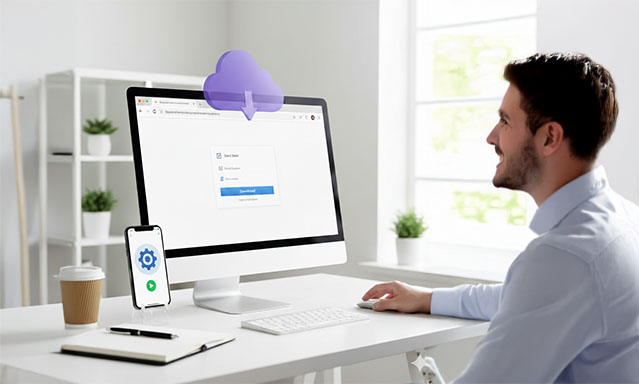
Download the Latest Software
Get the newest drivers and printer software optimized for compatibility with your system.
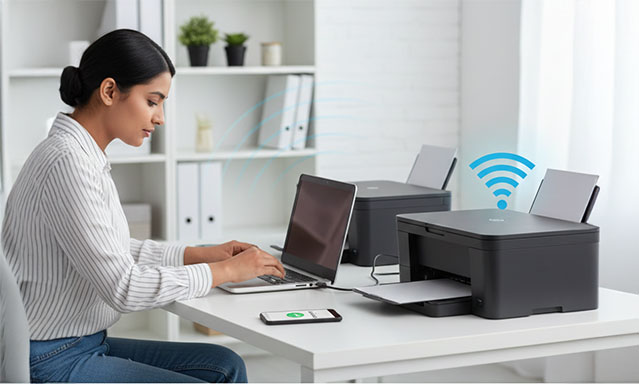
Connect Your Printer
Establish a connection using a USB cable or set up wireless access through the printer’s Wi-Fi setup options.
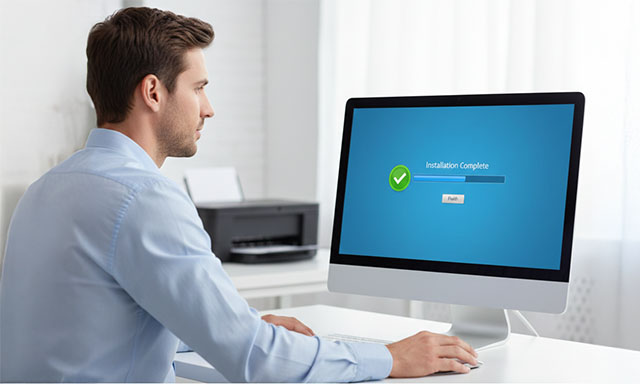
Install the Printer Drivers
Proceed with the on-screen instructions to finalize the installation and complete the setup process.
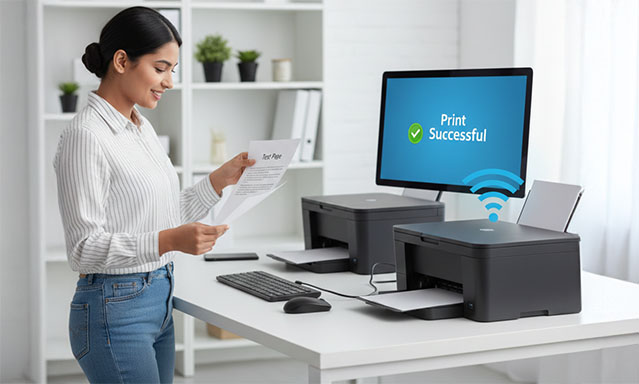
Test the Printer
After installation, print a test page to verify that your printer is functioning correctly.
🖥️ Printer Setup Guide for Windows (10 & 11)
Step 1: Physical Setup
Power & Ink: Plug the printer into a power outlet and turn it on. Install the ink cartridges or toner provided.
Paper: Load the paper tray and ensure the plastic guides are snug against the paper.
Wireless Connection: Use the printer’s built-in screen to find “Network Settings” or “Wi-Fi Setup” and connect to your home network.
USB Connection: Plug the USB cable into the printer and your PC.
Step 2: Adding the Device
Click the Start button and select the Settings (gear icon).
Go to Bluetooth & devices > Printers & scanners.
Click the Add device button. Wait for Windows to find your printer.
Once it appears, click Add device. Windows will automatically fetch the basic drivers for you.
Step 3: Troubleshooting for Windows
“Printer Offline”: Right-click the Start button, select Device Manager, find your printer under “Print queues,” right-click it, and select Update driver.
Print Spooler Error: Press Win + R, type services.msc, find Print Spooler, right-click it, and select Restart.
Firewall Issues: Sometimes Windows Defender blocks the connection. Temporarily disable the firewall to see if the printer is detected.
🖥️ Printer Setup Guide for Mac (macOS)
Step 1: Physical Setup
Hardware: Ensure the printer is powered on and any protective orange shipping tape is removed from the inside.
Network: Make sure your Mac and the printer are on the same Wi-Fi network. If using a cable, you may need a USB-C to USB-A adapter for modern MacBoo
Step 2: Adding the Device
Click the Apple Menu () and select System Settings (or System Preferences).
Scroll down and click Printers & Scanners.
Click the Add Printer, Scanner, or Fax… button (or the + icon).
Select your printer from the list.
In the Use dropdown menu, select AirPrint if available (this avoids needing to download extra software). Click Add.
Step 3: Troubleshooting for Mac
Communication Error: Go to Printers & Scanners, right-click your printer in the list, and select “Reset printing system…” This clears all printers and allows a fresh start.
AirPrint Not Found: Ensure your printer is AirPrint compatible. If not, you must visit the manufacturer’s website (e.g., Canon, HP, Epson) to download the specific .dmg installer for macOS.
Sleep Mode: Some printers lose Wi-Fi connection when they go into “Deep Sleep.” Try pressing a button on the printer to wake it up before sending a print job.
✅ Final Step (Both Systems)
Open a document, press Ctrl + P (Windows) or Cmd + P (Mac), and print a Test Page to confirm the colors and alignment are correct.
Need Help? Connect with Online Experts
If you’re still experiencing issues after following these steps, our certified support experts are here to assist you. Connect online for real-time troubleshooting, personalized guidance, and quick solutions to get your printer up and running smoothly.